
SaleSmartly App User Guide
SaleSmartly Mobile Feature Quick Guide
Use this guide to find feature entrances. Blue boxes and numbers mark where to tap or long-press. Screenshots include some surrounding interface to help you locate each feature.
Screenshot version: 5.3.2 · Updated: October 27, 2026. Available actions depend on your account, channel and conversation state. Screenshots preserve the app's actual labels, including a few untranslated labels.
Contents
Conversation list
- Switch conversation views
- Search and filter conversations
- Conversation long-press menu
- Select multiple conversations
Inside a chat
- Chat tools and internal notes
- Message long-press menu
- Open contact details
- Long-press a profile field to copy
- Search chat history and locate messages
Contacts and tags
Settings
1. Switch conversation views
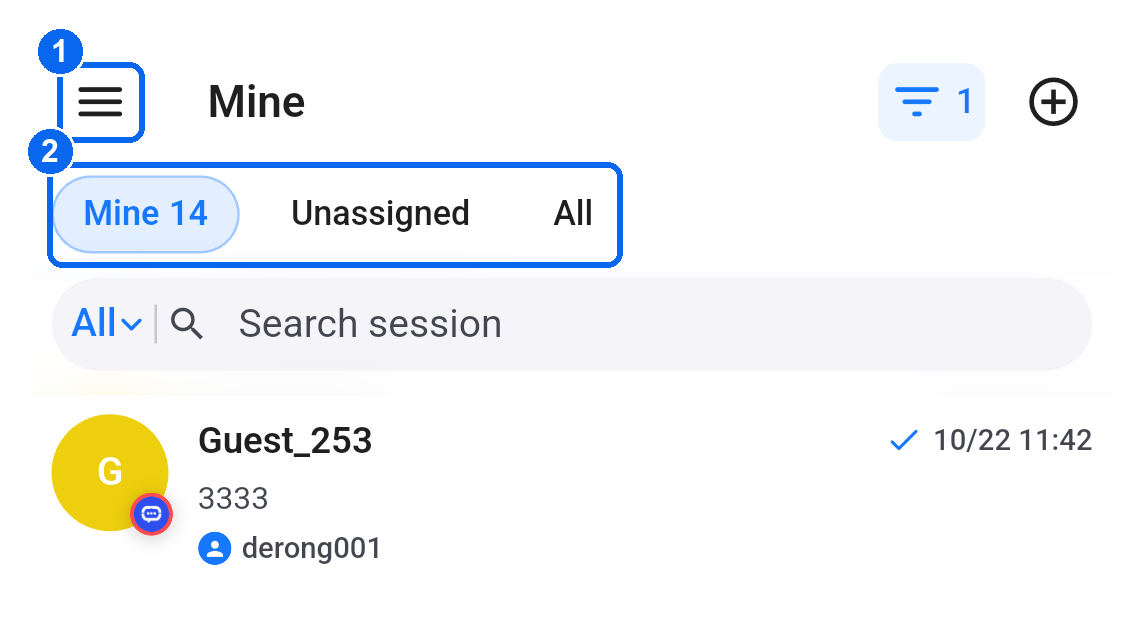
Path: Chats → three-line menu in the upper-left corner (①).
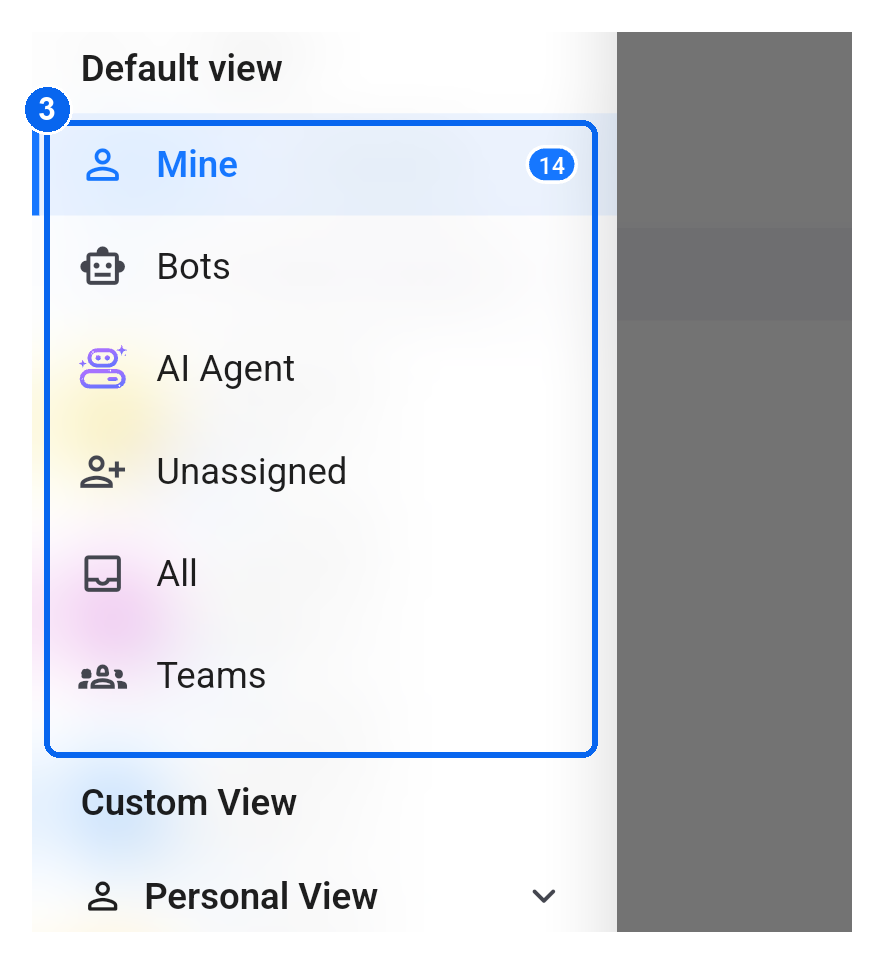
Tap Mine, Unassigned or All at the top (②) for a quick switch. Open the three-line menu to find other views (③), including Bots, AI Agent and Teams.
2. Search and filter conversations
Path: Chats → search bar or upper-right filter icon.
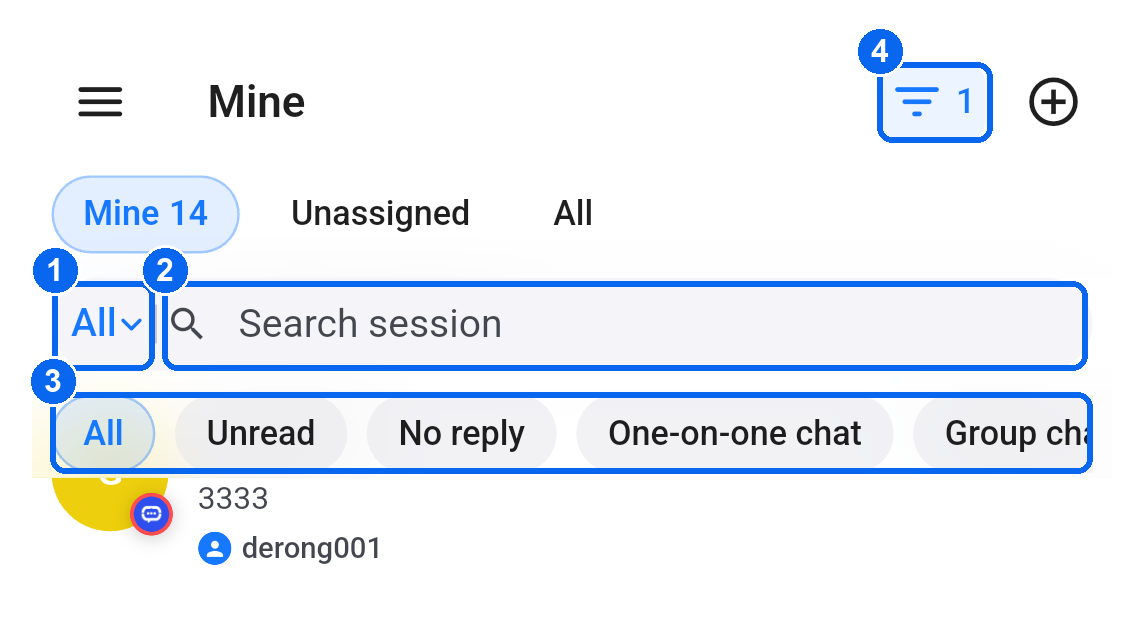
- Tap All and its arrow on the left of the search bar (①) to reveal quick filters. Enter keywords in Search session (②) to find a conversation.
- Choose a quick filter (③), such as Unread, No reply, One-on-one chat or Group chat. Swipe the row horizontally to see more options.
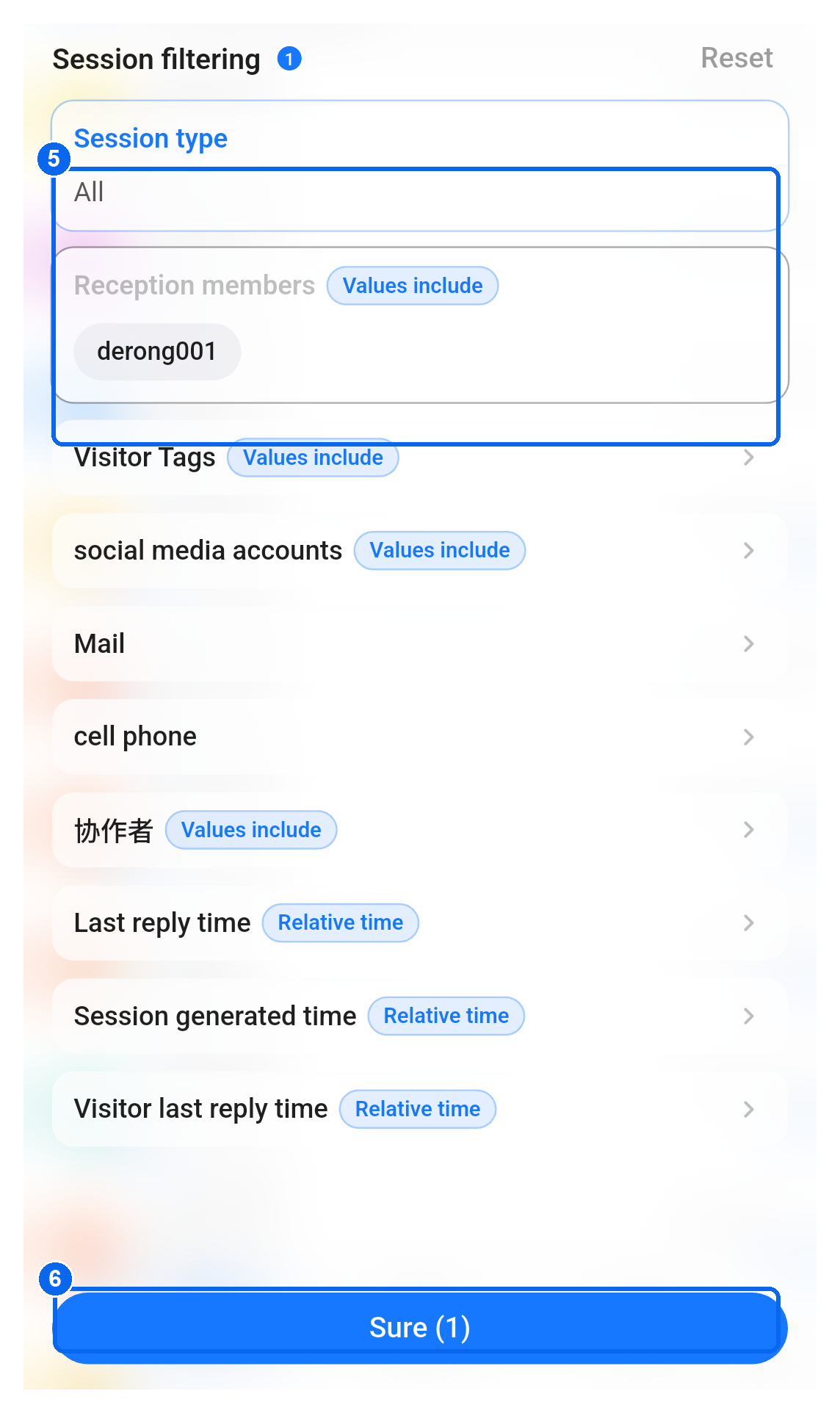
- Tap the upper-right filter icon (④) to open Session filtering. Set conditions such as session type, reception members or visitor tags (⑤), then tap Sure (⑥) at the bottom to apply them. The number beside the button shows the active condition count.
3. Conversation long-press menu
Path: Chats → long-press a conversation in the list.
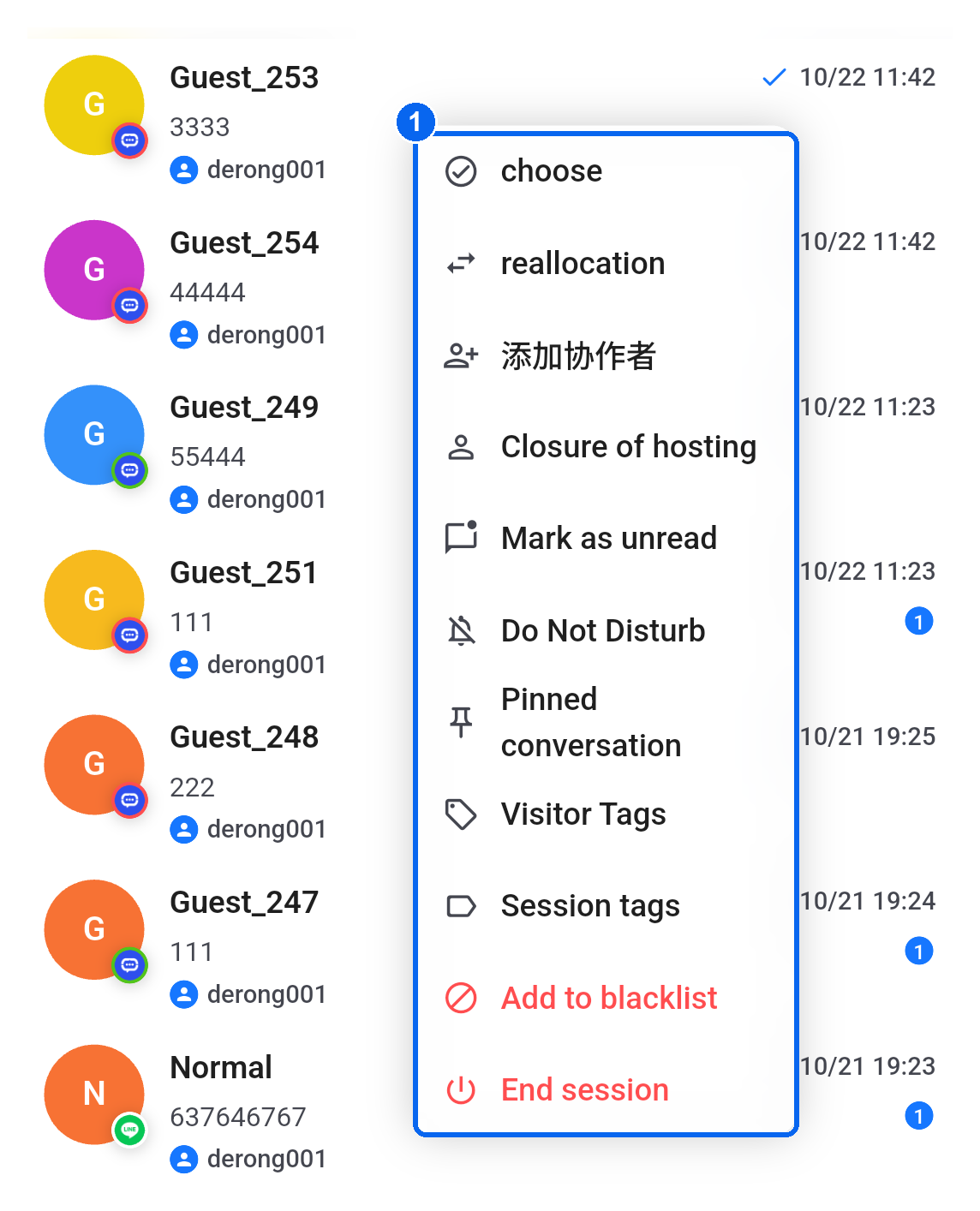
The menu (①) contains reassignment, collaborators, unread status, Do Not Disturb, pinning, Visitor Tags and Session tags. Tap choose to enter selection mode. The collaborator action currently appears as 添加协作者 (Add collaborators).
4. Select multiple conversations
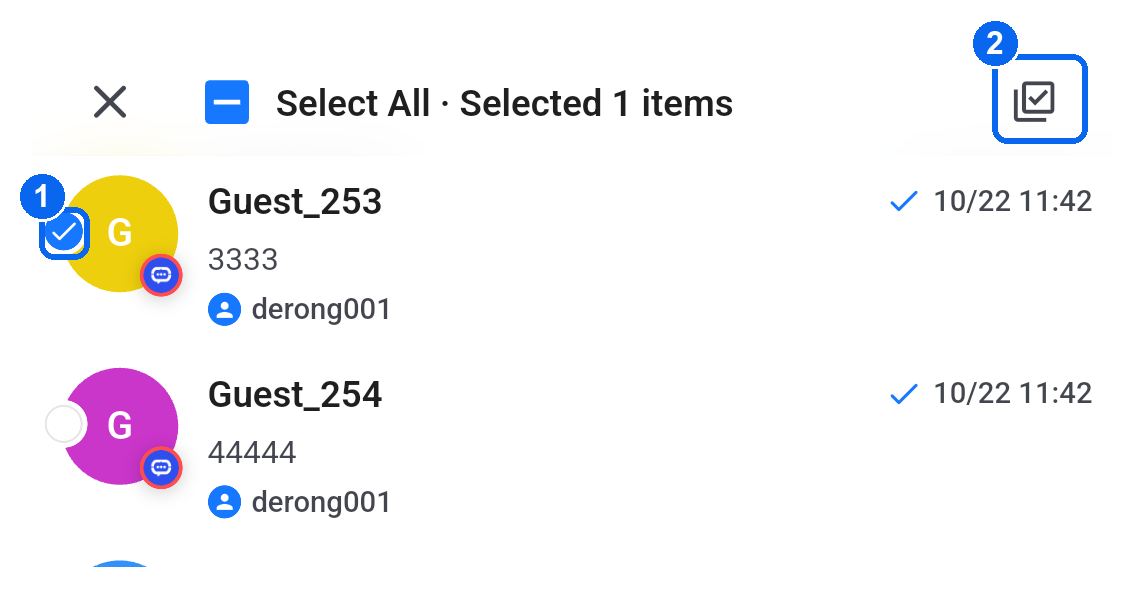
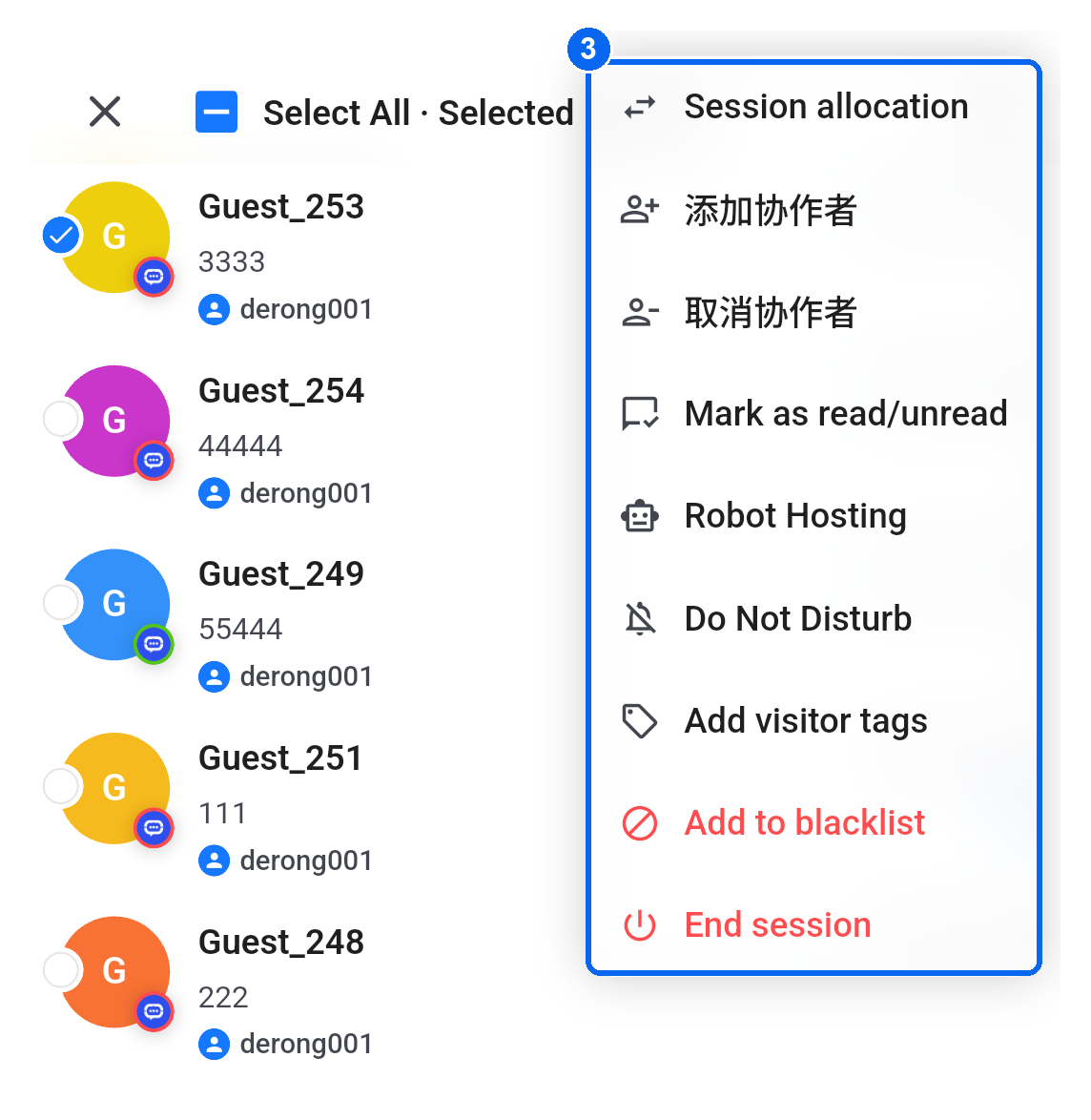
Path: Long-press a conversation → choose → tick conversations (①) → upper-right batch action icon (②).
The header shows how many conversations are selected and provides Select All. Open the batch menu (③) for assignment, collaborators, read status, hosting, Do Not Disturb and tags. Tap × in the upper-left corner to leave selection mode. 添加协作者 and 取消协作者 mean Add collaborators and Remove collaborators.
5. Chat tools and internal notes
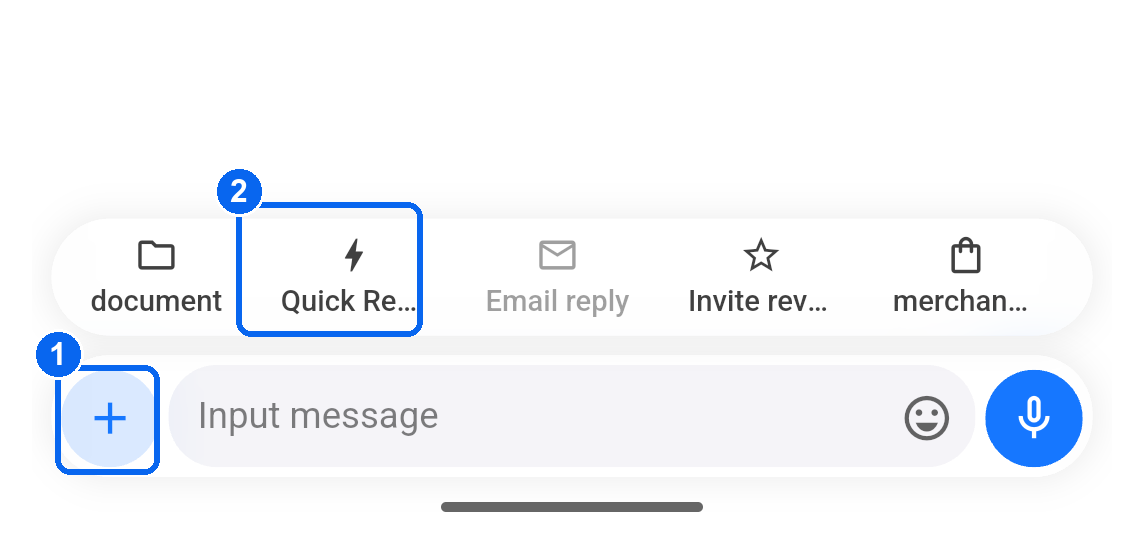
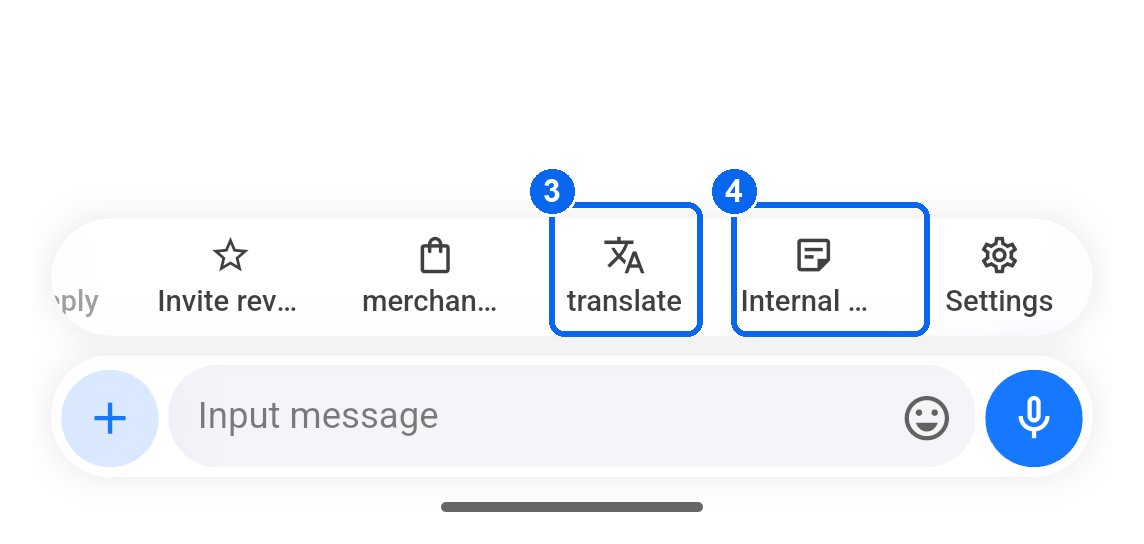
Path: Chat → + to the left of the message input (①).
- The expanded toolbar contains files (document), Quick Reply (②) and other tools. Swipe it horizontally to reveal more entrances.
- Translation (③) and Internal Note (④) are in this toolbar too.
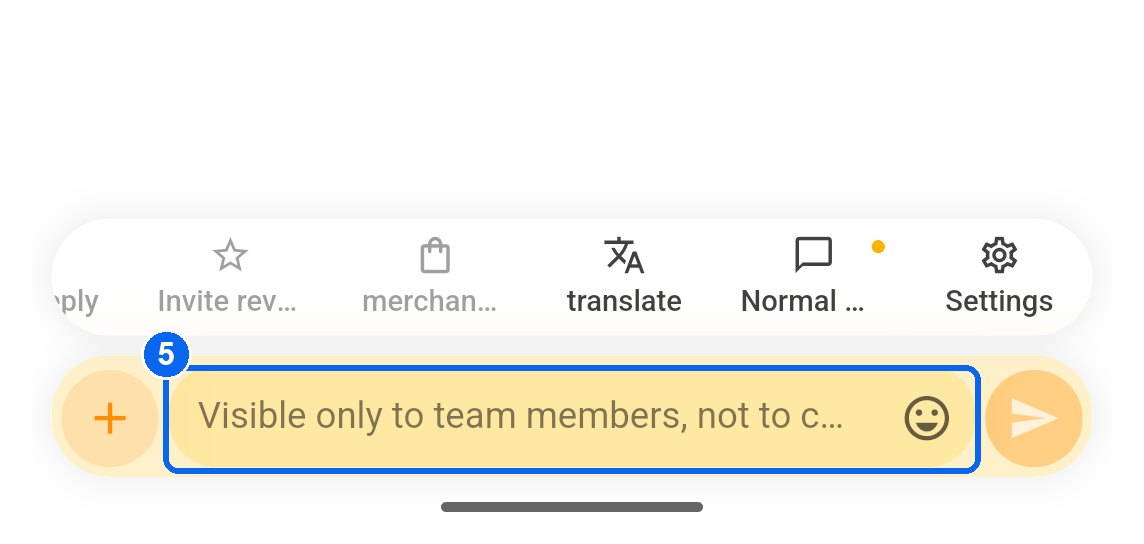
- In internal note mode, the input turns yellow and indicates that the note is visible only to team members (⑤). Tap the toolbar's Normal message action, shown as Normal …, to return to regular messages.
6. Message long-press menu
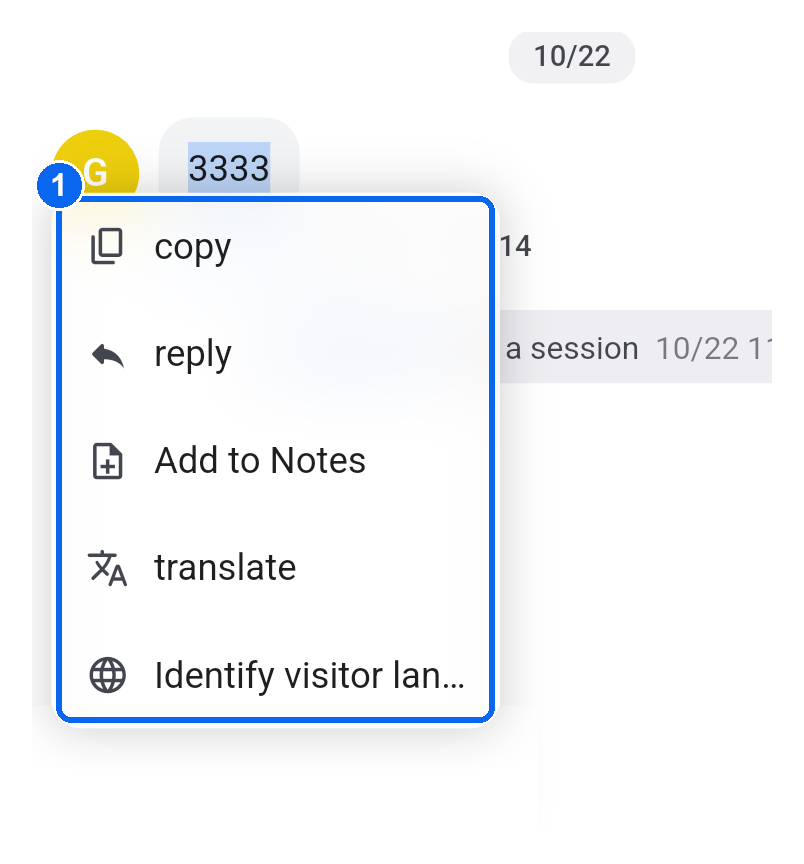
Path: Open a chat → long-press a message bubble.
For a text message, the menu (①) can include copy, reply, Add to Notes, translate and visitor language identification. Actions vary by message type and channel.
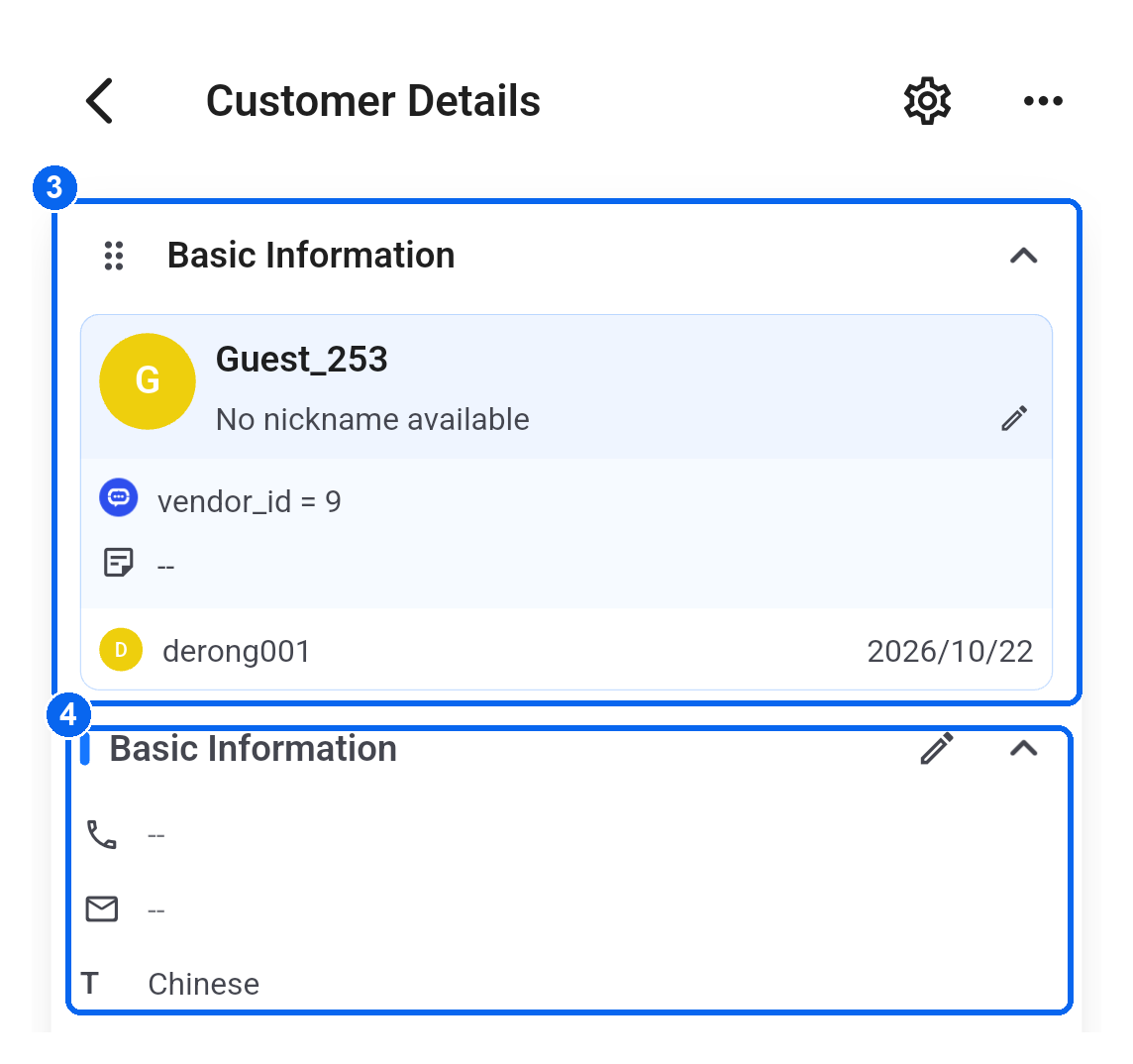
7. Open contact details
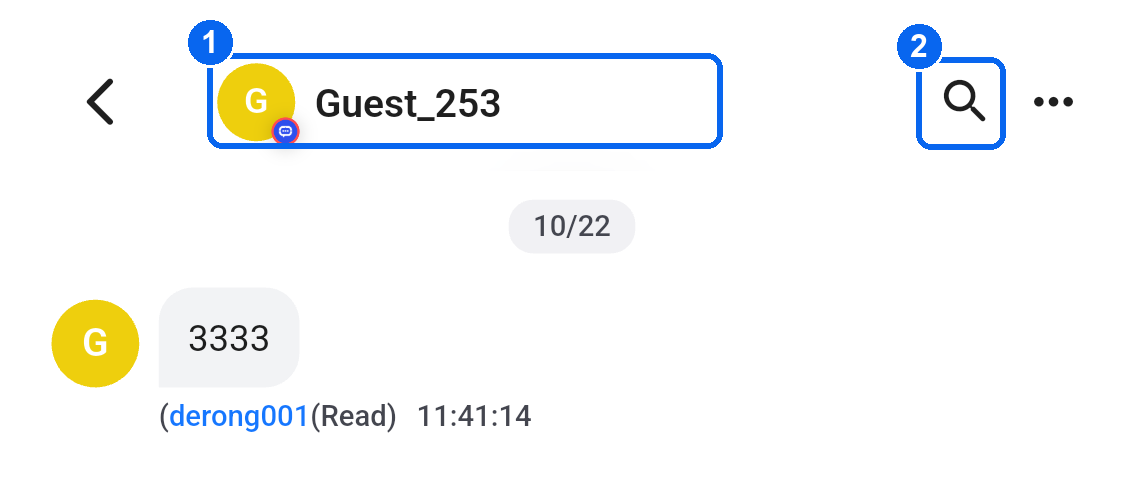
Path: Chat → tap the avatar or name in the header (①).
On Customer Details, the upper card (③) contains the contact's identity information. The next Basic Information section (④) contains fields such as phone, email and language.
8. Long-press a profile field to copy
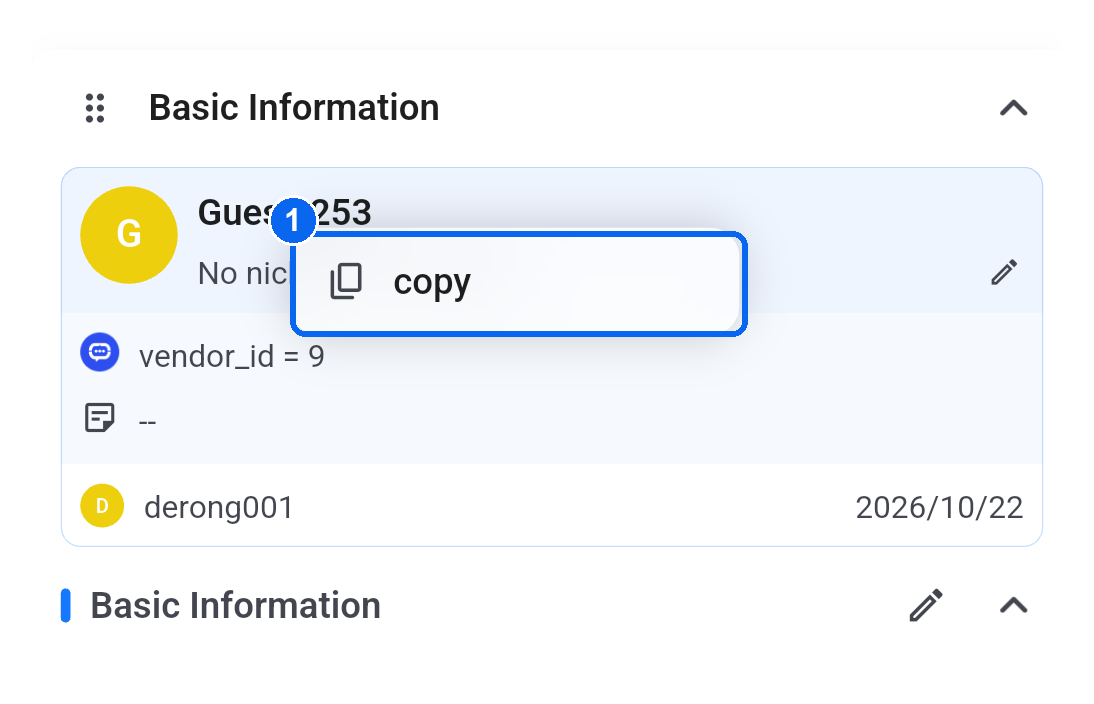
Path: Chat → avatar or name in the header → Customer Details → long-press a field.
For example, long-press the contact's name to reveal copy (①), then tap it to copy the value. Other fields support this action where a copy menu is available.
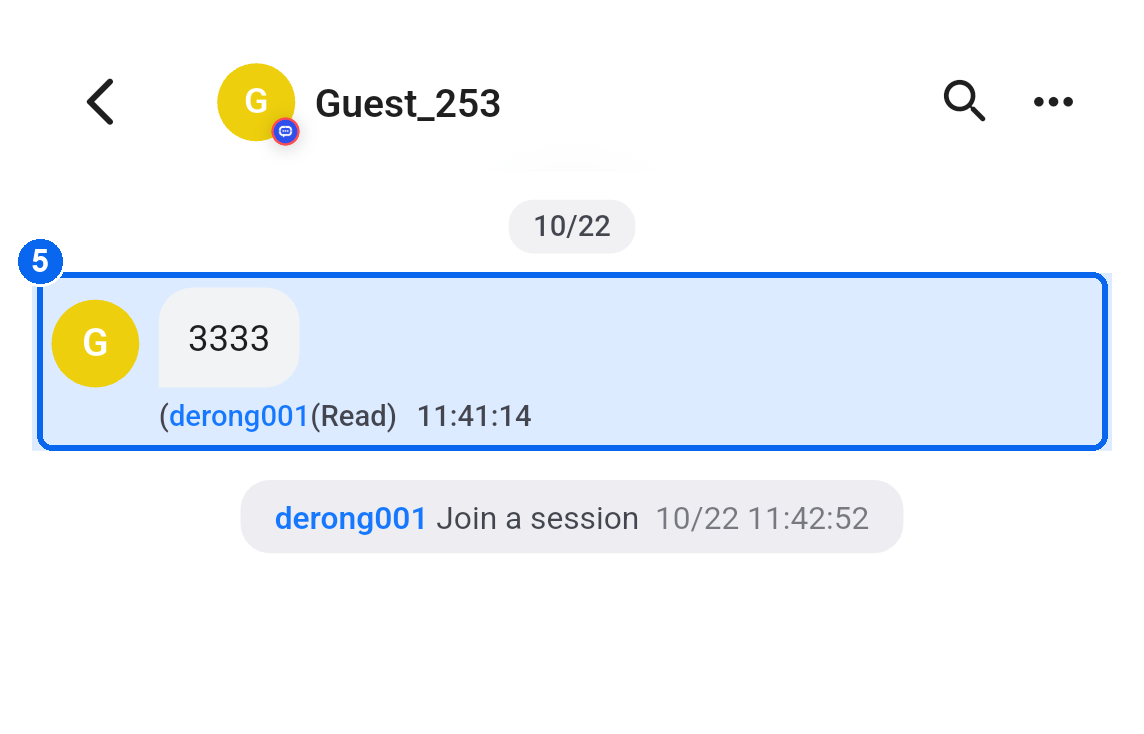
9. Search chat history and locate messages
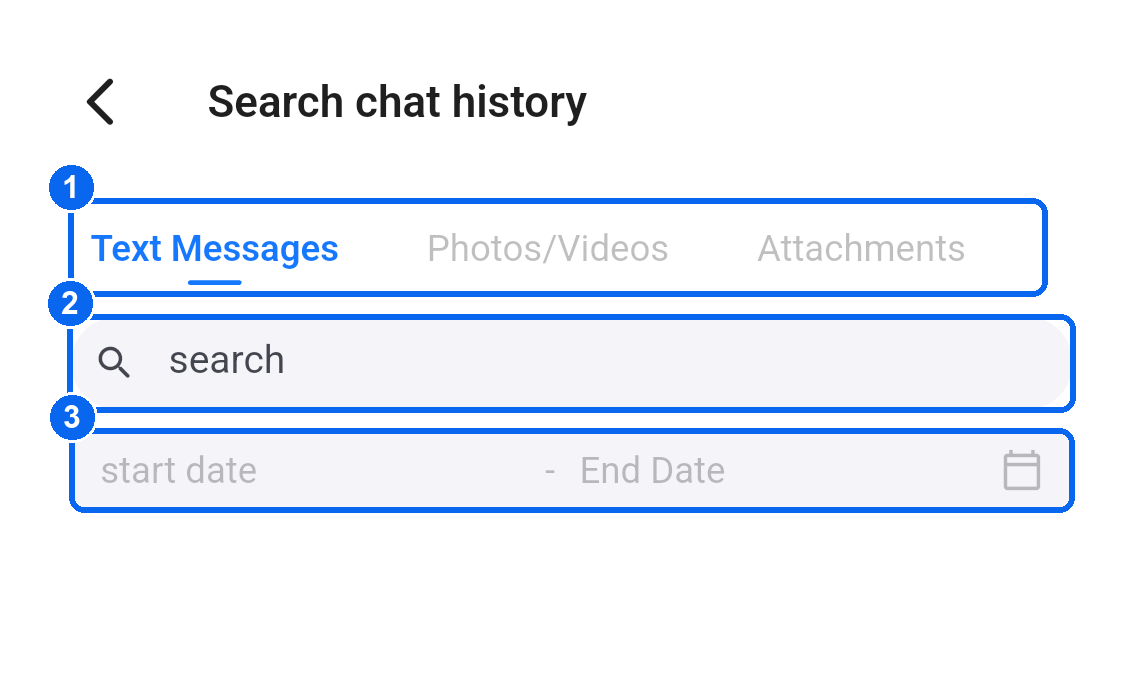
Path: Chat → magnifying glass in the upper-right corner (② in the first image of section 7: Open contact details).
- Choose Text Messages, Photos/Videos or Attachments at the top (①).
- Enter a keyword in search (②). Set a start and end date (③) to narrow the range when needed.
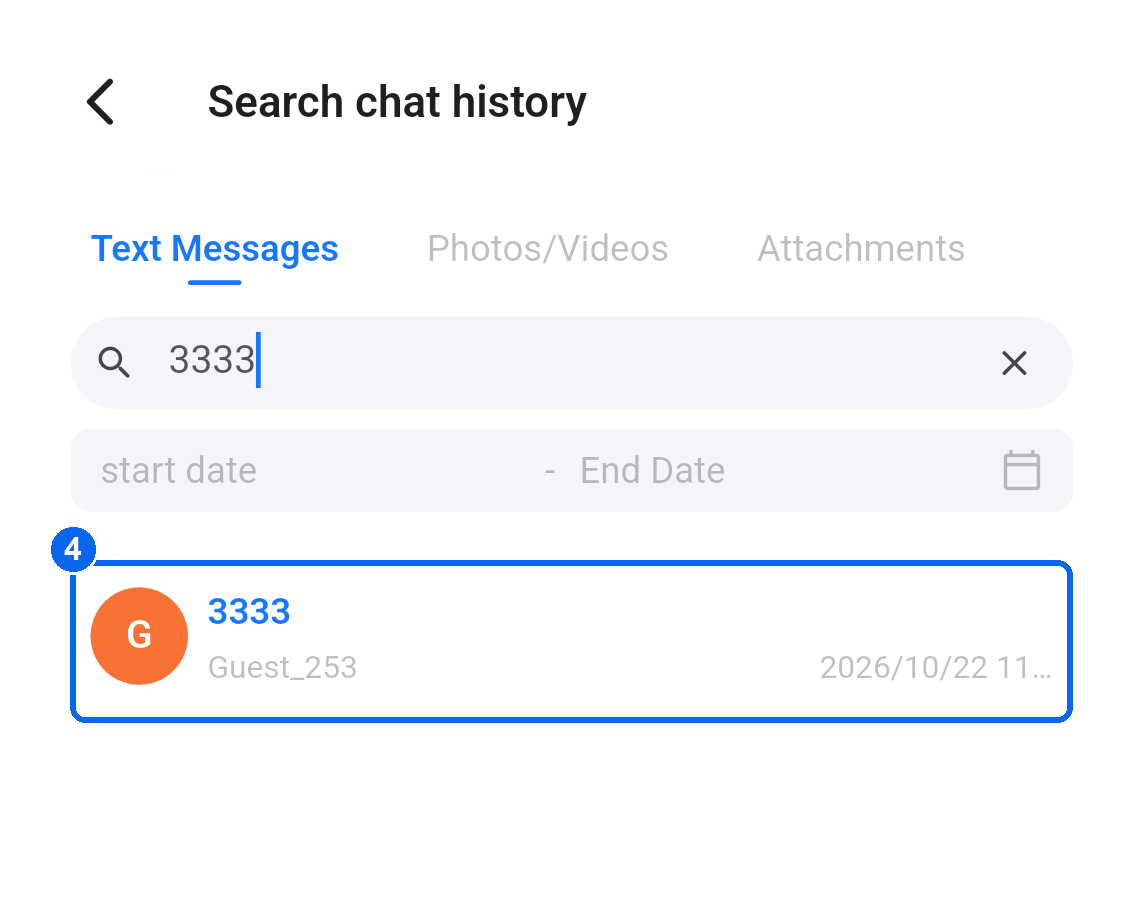
- After searching text messages, tap a result (④) to return to its position in the chat. The located message is highlighted (⑤).
10. Find and filter contacts
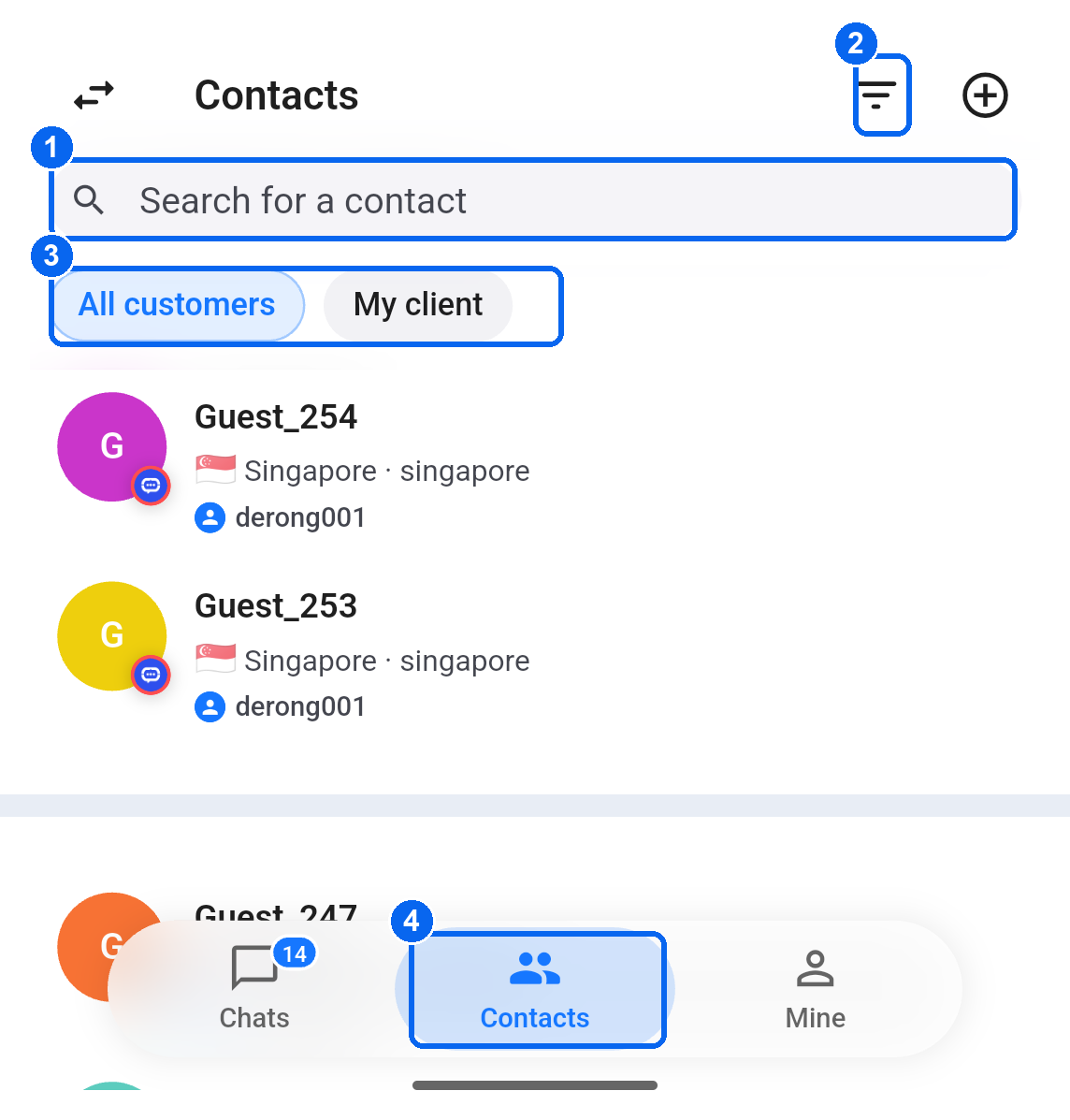
Path: Contacts in the bottom navigation (④).
Use Search for a contact at the top (①), or tap the upper-right filter icon (②). All customers and My client (③) change the list's scope.
11. Contact long-press menu
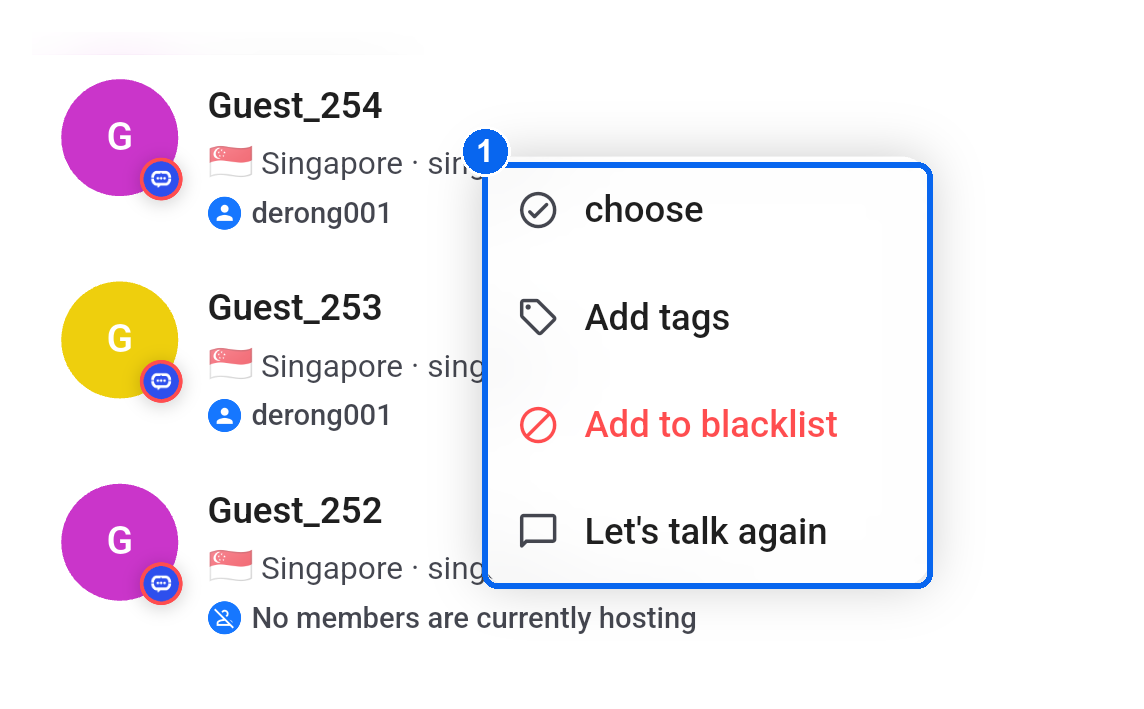
Path: Contacts → long-press a contact in the list.
The menu (①) provides choose, Add tags, Add to blacklist and Let’s talk again. Let’s talk again opens a chat with that contact. Available actions depend on your account.
12. Tag and tag group long-press menus
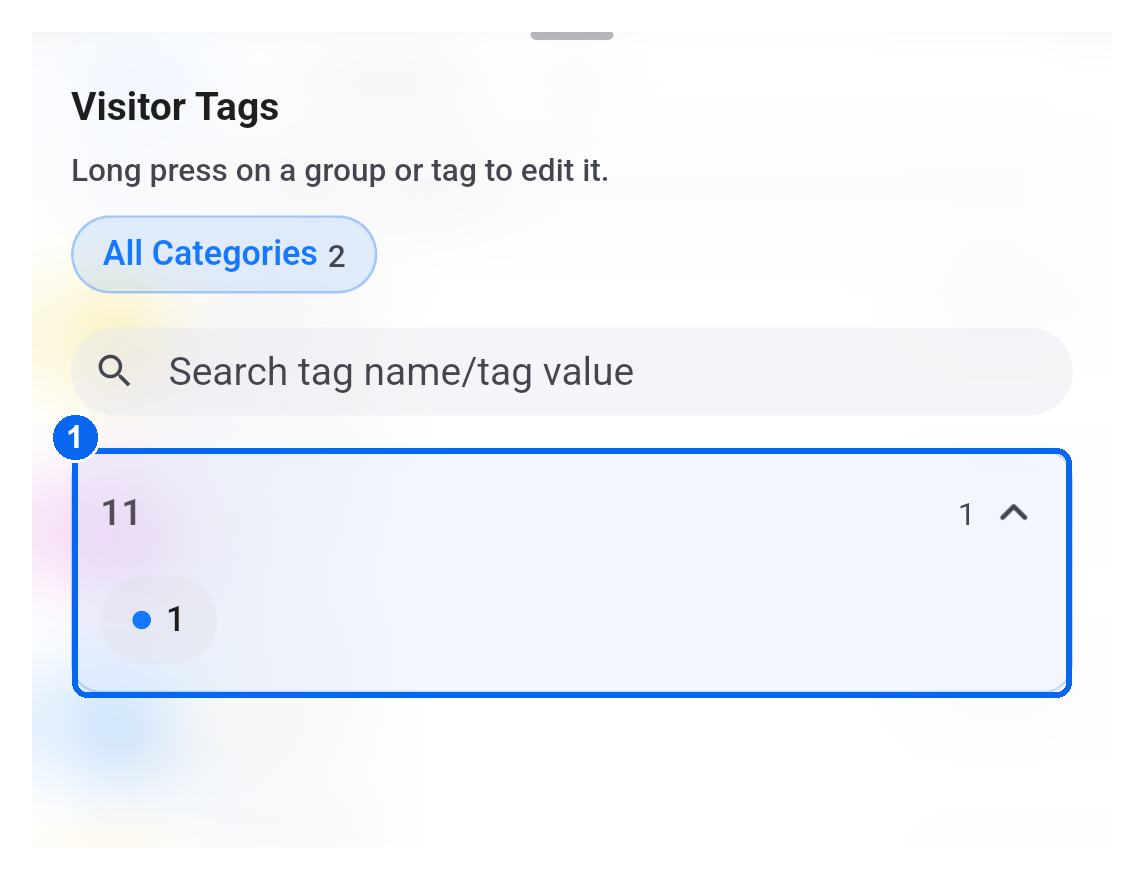
Path: Long-press a conversation → Visitor Tags. You can also use Add tags in a contact's long-press menu.
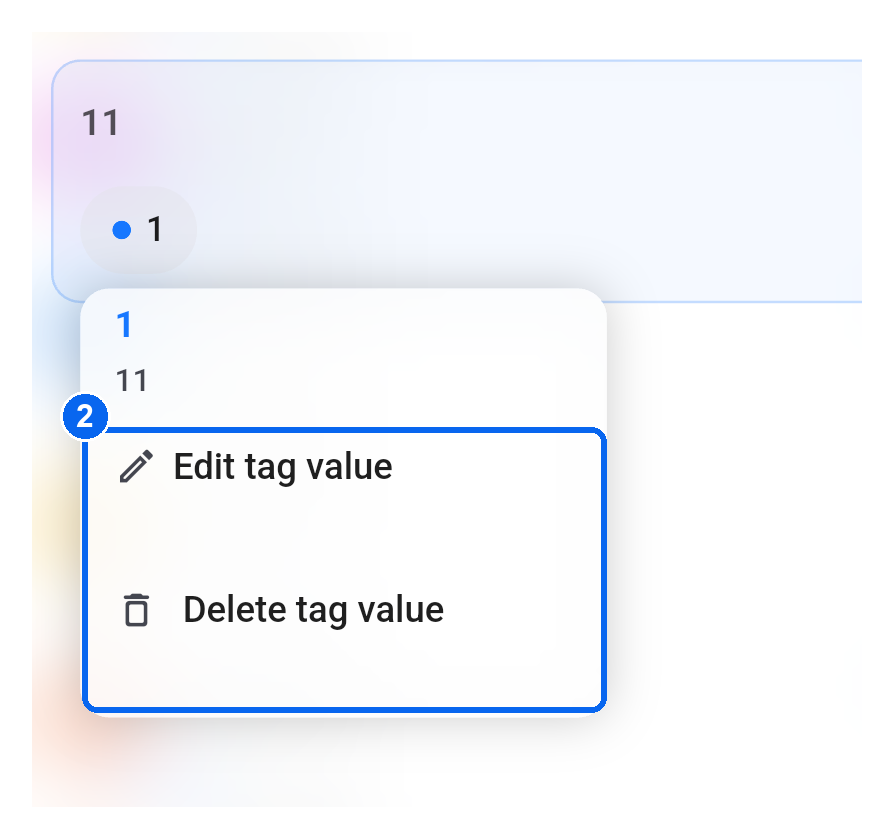
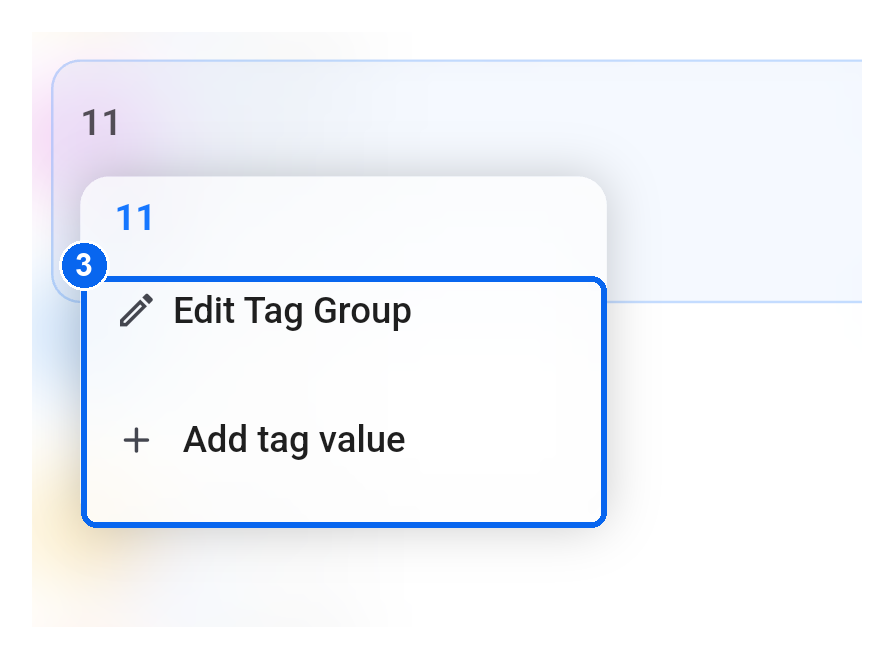
Tap a group to expand its tags (①). Long-press a tag to find Edit tag value and Delete tag value (②). Long-press a group name to find Edit Tag Group and Add tag value (③).
13. Preferences
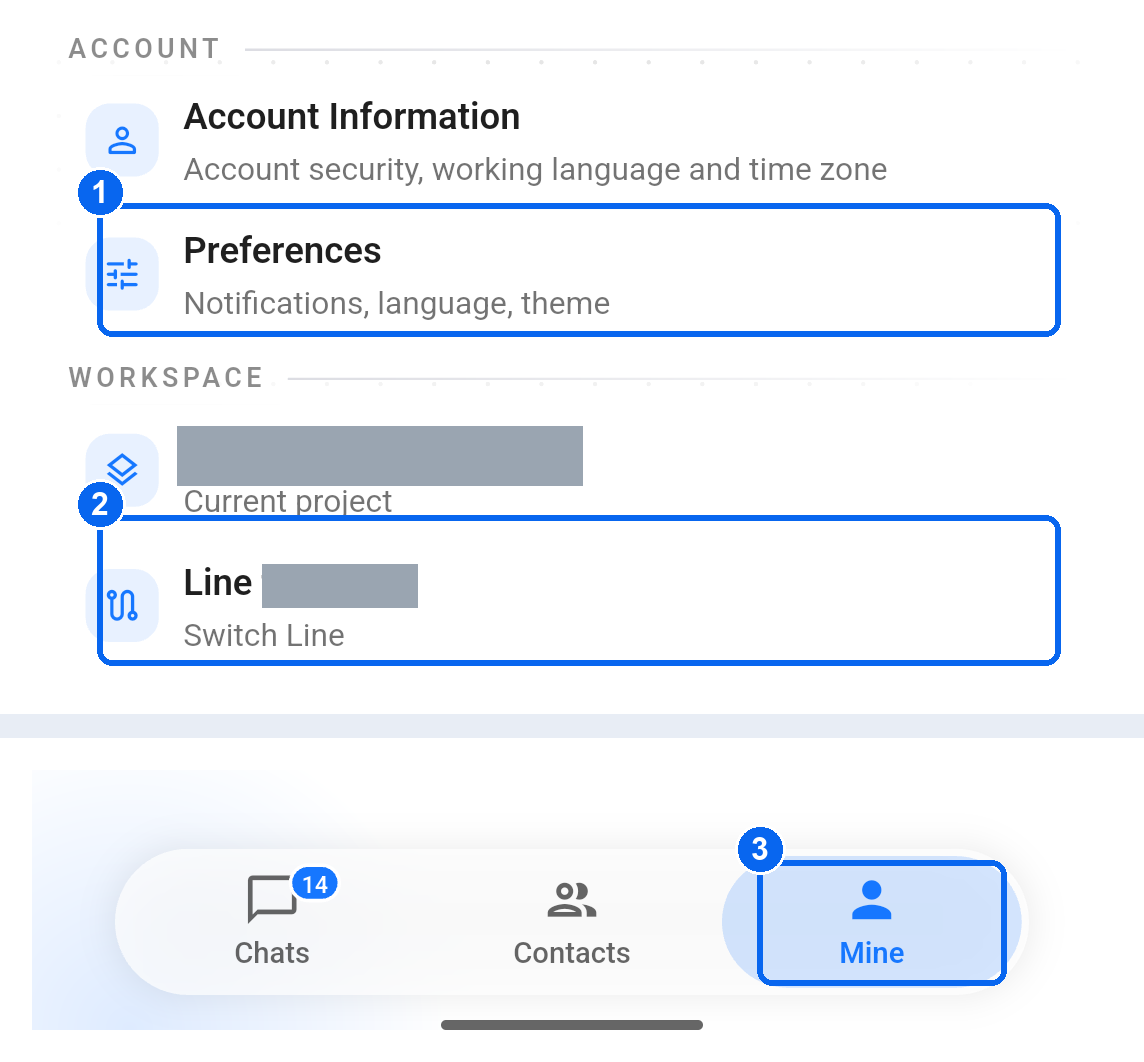
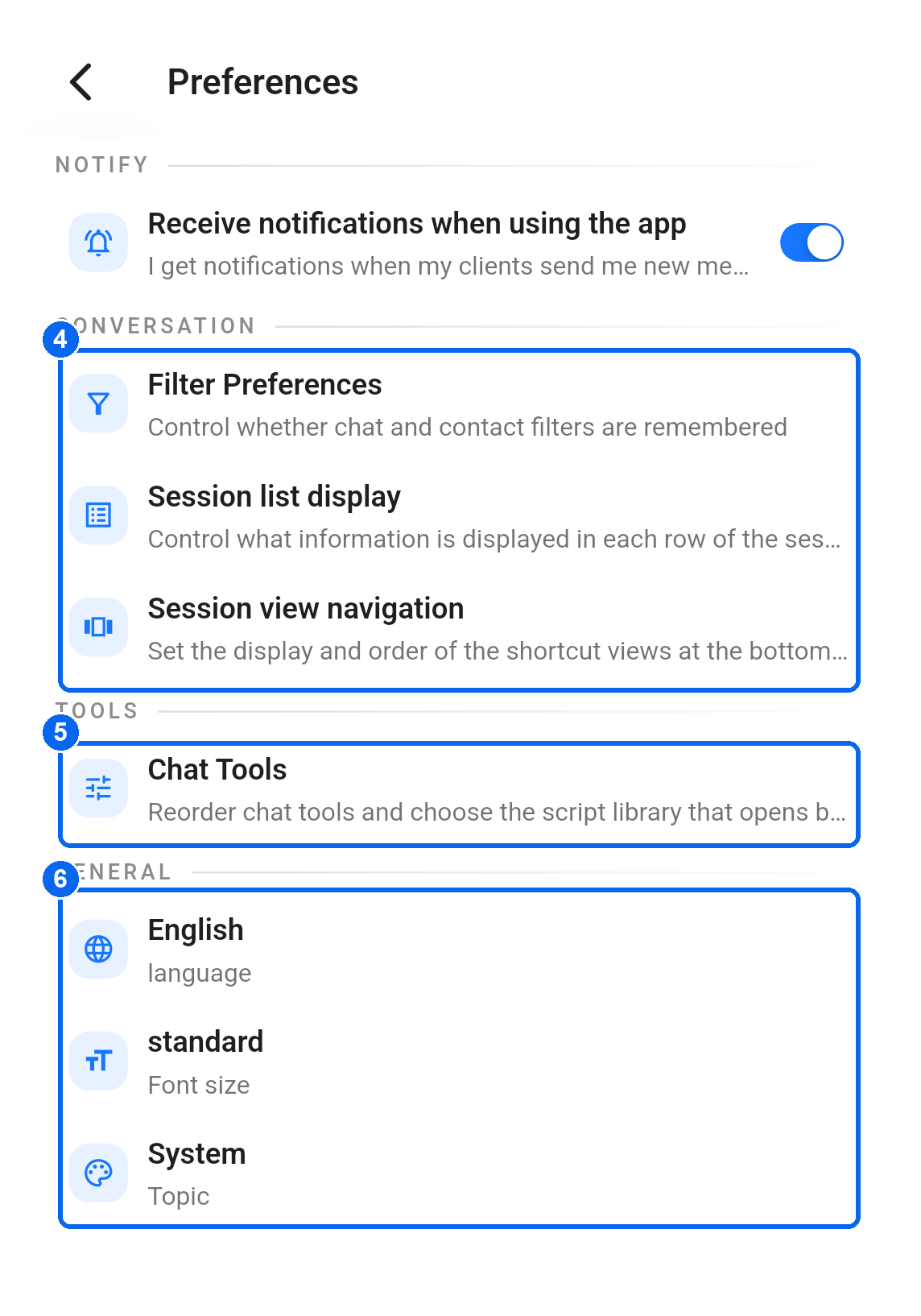
Path: Mine in the bottom navigation (③) → Preferences (①).
Find Filter Preferences, Session list display and Session view navigation (④), plus Chat Tools ordering (⑤). Language, font size and theme are below (⑥). The in-app notification switch is at the top.
14. Switch lines and check the connection
Path: Mine → the row showing your current line (② in the first image of section 13: Preferences).
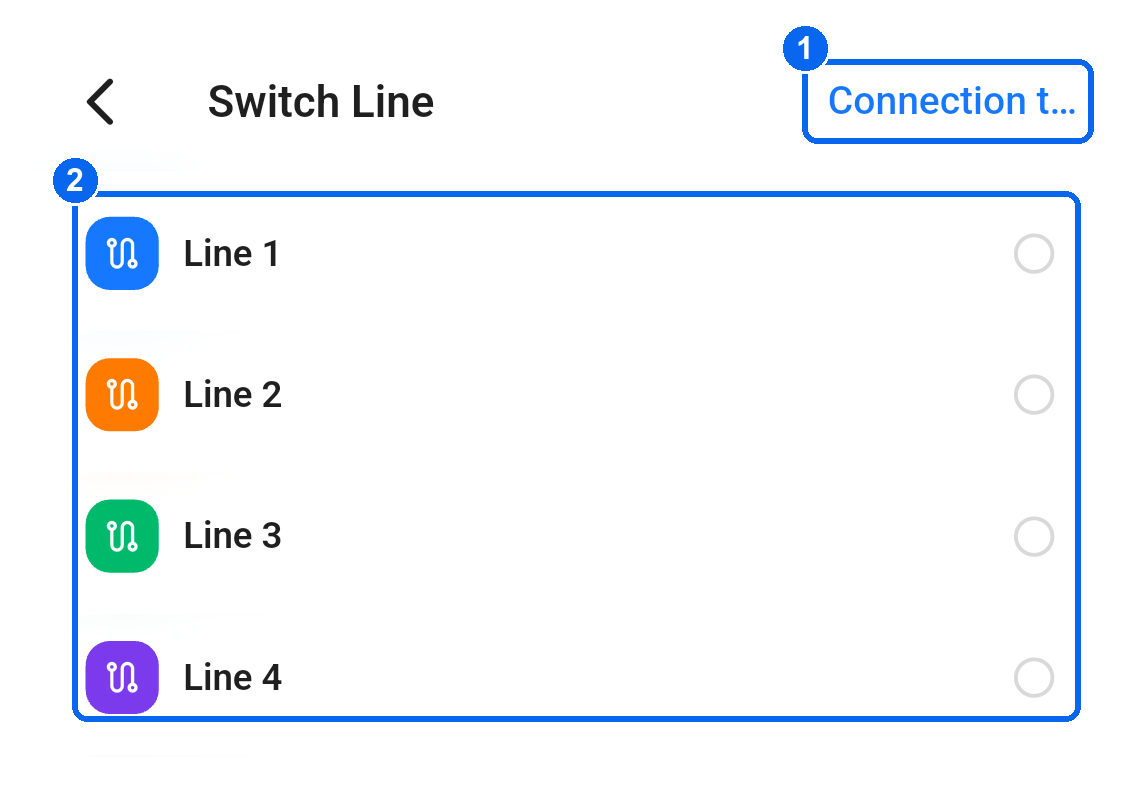
On Switch Line, the upper-right connection test action (①), displayed as Connection t…, opens the check page. Use the line options below (②) to change the connection line.
;}.cls-2{fill:%230868f7;}.cls-3{fill:url(%23未命名的渐变_44);}.cls-4{fill:%23333;}%3c/style%3e%3clinearGradient%20id='未命名的渐变_8'%20x1='33.73'%20y1='100.61'%20x2='-0.03'%20y2='-1.06'%20gradientUnits='userSpaceOnUse'%3e%3cstop%20offset='0'%20stop-color='%237ae9fb'/%3e%3cstop%20offset='0.67'%20stop-color='%232b90f8'/%3e%3cstop%20offset='1'%20stop-color='%230868f7'/%3e%3c/linearGradient%3e%3clinearGradient%20id='未命名的渐变_44'%20x1='27.86'%20y1='18.67'%20x2='68.36'%20y2='22.22'%20gradientUnits='userSpaceOnUse'%3e%3cstop%20offset='0'%20stop-color='%235ac7f2'/%3e%3cstop%20offset='1'%20stop-color='%230868f7'/%3e%3c/linearGradient%3e%3c/defs%3e%3cpath%20class='cls-1'%20d='M29,28.74V81.91l-9.51-3.68v0L8.52,74A7.17,7.17,0,0,1,4,67.32V24.54A3.76,3.76,0,0,1,9.08,21Z'/%3e%3cpath%20class='cls-2'%20d='M68.09,78.07a13.15,13.15,0,0,1-17.9,12.06L29,81.91h0V28.74L50.19,37A13.17,13.17,0,0,0,68.08,25.3h0Z'/%3e%3cpath%20class='cls-3'%20d='M68.08,25.3a13.19,13.19,0,0,1-6.73,10.87A13.09,13.09,0,0,1,50.19,37L29,28.74V6A3.76,3.76,0,0,1,34.1,2.52l25.59,9.91A13.22,13.22,0,0,1,68.08,25.3Z'/%3e%3cpath%20class='cls-4'%20d='M129.06,81.76a4.33,4.33,0,0,1-3.19-1.31,4.4,4.4,0,0,1-1.31-3.24V56.86H97.65V77.21a4.36,4.36,0,0,1-1.35,3.2A4.68,4.68,0,0,1,93,81.76a4.32,4.32,0,0,1-3.19-1.31,4.37,4.37,0,0,1-1.32-3.24V27.27A4.58,4.58,0,0,1,89.83,24a4.59,4.59,0,0,1,7.82,3.27V48.15h26.91V27.27A4.58,4.58,0,0,1,125.91,24a4.59,4.59,0,0,1,7.82,3.27V77.21a4.37,4.37,0,0,1-1.36,3.2A4.65,4.65,0,0,1,129.06,81.76Z'/%3e%3cpath%20class='cls-4'%20d='M163.77,81.66c-6.57,0-11.76-1.92-15.44-5.7s-5.54-9.07-5.54-15.74a26.76,26.76,0,0,1,2.09-10.43,17.72,17.72,0,0,1,6.67-8.06,19.15,19.15,0,0,1,10.68-2.95,19,19,0,0,1,10.46,2.8,18.7,18.7,0,0,1,6.55,7.36,22.53,22.53,0,0,1,2.36,10.28A4.51,4.51,0,0,1,177,63.77H152.23a10.8,10.8,0,0,0,3.49,6.65c2,1.68,4.88,2.52,8.66,2.52a22.25,22.25,0,0,0,7.54-1.21c.74-.3,1.55-.67,2.37-1.07a3.75,3.75,0,0,1,1.84-.4,4.09,4.09,0,0,1,3,1.15,4,4,0,0,1,1.12,3,4.38,4.38,0,0,1-2.58,3.82,32.34,32.34,0,0,1-6.36,2.61A28.67,28.67,0,0,1,163.77,81.66ZM172.4,55.9a9.72,9.72,0,0,0-1.63-4.56A9.9,9.9,0,0,0,167,48a10.38,10.38,0,0,0-4.64-1.14,12,12,0,0,0-4.77,1.06,9.54,9.54,0,0,0-4.89,5.66,11.78,11.78,0,0,0-.51,2.3Z'/%3e%3cpath%20class='cls-4'%20d='M193,81.64a4.49,4.49,0,0,1-4.51-4.55V27.28A4.58,4.58,0,0,1,189.84,24a4.48,4.48,0,0,1,3.28-1.36A4.36,4.36,0,0,1,196.35,24a4.46,4.46,0,0,1,1.31,3.31V77.09a4.34,4.34,0,0,1-1.35,3.2A4.67,4.67,0,0,1,193,81.64Z'/%3e%3cpath%20class='cls-4'%20d='M263.79,81.71a5.7,5.7,0,0,1-4.2-1.74,5.76,5.76,0,0,1-1.73-4.19V27.37a4.58,4.58,0,0,1,1.35-3.27A4.59,4.59,0,0,1,267,27.37V72.53h24a4.58,4.58,0,0,1,3.27,7.82A4.66,4.66,0,0,1,291,81.71Z'/%3e%3cpath%20class='cls-4'%20d='M424.48,81.74a4.71,4.71,0,0,1-2.71-.88,5.43,5.43,0,0,1-1-1l-.07-.09-12.41-17-5.41,5v9.44a4.31,4.31,0,0,1-1.36,3.19,4.66,4.66,0,0,1-3.3,1.36A4.29,4.29,0,0,1,395,80.42a4.36,4.36,0,0,1-1.32-3.23V27.37A4.58,4.58,0,0,1,395,24.1a4.52,4.52,0,0,1,6.58.12,4.54,4.54,0,0,1,1.24,3.15V56.31l17.72-16.38.05,0a4.8,4.8,0,0,1,2.94-1.11,4.4,4.4,0,0,1,3.27,1.2,4.57,4.57,0,0,1,1.2,3.27,4.44,4.44,0,0,1-.77,2.33,7.45,7.45,0,0,1-1.43,1.65l-11,9.64,13.34,17.68a5,5,0,0,1,1,2.71,4.12,4.12,0,0,1-1.36,3.24A4.64,4.64,0,0,1,424.48,81.74Z'/%3e%3cpath%20class='cls-4'%20d='M317.93,81.76a21.5,21.5,0,1,1,21.17-21.5A21.37,21.37,0,0,1,317.93,81.76Zm0-34.1a12.61,12.61,0,1,0,12.42,12.6A12.52,12.52,0,0,0,317.93,47.66Z'/%3e%3cpath%20class='cls-4'%20d='M212.18,101.22a4.12,4.12,0,0,1-3.05-1.26,4.17,4.17,0,0,1-1.26-3.1V43.34a4.37,4.37,0,0,1,1.3-3.14,4.26,4.26,0,0,1,3.13-1.3,4.19,4.19,0,0,1,3.1,1.26,4.32,4.32,0,0,1,1.26,3.16,20.77,20.77,0,0,1,13-4.54,21.51,21.51,0,0,1,0,43,20.51,20.51,0,0,1-13-4.57V96.86a4.15,4.15,0,0,1-1.3,3.06A4.5,4.5,0,0,1,212.18,101.22Zm17.43-53.63c-6.23,0-12.93,4.11-12.93,12.72a12.73,12.73,0,0,0,25.46,0A12.71,12.71,0,0,0,229.61,47.59Z'/%3e%3cpath%20class='cls-4'%20d='M365.76,81.76a21.5,21.5,0,1,1,21.18-21.5A21.37,21.37,0,0,1,365.76,81.76Zm0-34.1a12.61,12.61,0,1,0,12.42,12.6A12.52,12.52,0,0,0,365.76,47.66Z'/%3e%3c/svg%3e)