
SaleSmartly Chat Plugin JSSDK Developer Documentation
1. Introduction
After inserting the code (ssq is a global variable), you can make message changes and chat window calls by the following methods.
2. API
Command Status Callback
The following 8 public APIs support an optional command status callback: setLoginInfo, clearUser, chatOpen, chatClose, sendTextMessage, setInputText, hideUpload, and hideCloseIcon.
- For commands with a payload, use
ssq.push(command, payload, callback). - For commands without a payload, use
ssq.push(command, callback). - The callback is optional. Existing calls without a callback continue to work.
- In this version, the callback receives only
{ status }and is called at most once per command.
| status | Description |
|---|---|
success |
The command completed successfully. |
failed |
The command failed. |
ignored |
The command was ignored. |
2.2.1 Set login information
You can set user information after user login, and correspondingly, you can see the set information in the customer service system.
ssq.push('setLoginInfo', {
user_id: 'b58e64cfxs2ym', // Encrypted User ID (Required). Maximum length: 300 characters.
user_name: 'test_yy', // Required, Username
language: 'ru-RU', // Plugin Language
phone: '861592014xxxx', // The mobile phone number must be filled in the complete format including the country code; mobile phone numbers without area codes may result in errors in identifying the country or region or be identified as invalid numbers.
email: 'test@test', // Email
description: 'comboB\nClient\nFee-charging customers', // Description
label_names: ['Label1','Label2'], // The name of the tag value. This is an overwrite method. Only tag values created by the system can be passed.
update_label_type: 'update', // Method of passing labels append - append labels update - overwrite previous labels
custom_fields_ext: {"1210":"test11","more":["s1","s2"]}, // Custom fields, find the id and corresponding value in the custom fields of the project settings and fill them in (select the type to be passed in as an array), which can be viewed in the customer information
}, function(result) {
console.log('setLoginInfo status:', result.status);
});Callback status:
success: The login information was applied.failed: The login could not be completed.ignored: The command was replaced by a newer identity command.
Pass login information through an exclusive link
An exclusive link can pass user information to the existing setLoginInfo command. The supported fields are the same as in the example above. Before loading the root install.js, the page queues the user information in ssq. No additional backend API is required.
Method 1: Pass information through the URL
Use this method when the exclusive link is opened directly in a browser or copied and shared. The value of setLoginInfo must be a URL-encoded JSON object.
const loginInfo = {
user_id: 'b58e64cfxs2ym', // Encrypted User ID (Required). Maximum length: 300 characters.
user_name: 'test_yy', // Required, Username
language: 'ru-RU', // Plugin Language
phone: '861592014xxxx', // The mobile phone number must be filled in the complete format including the country code; mobile phone numbers without area codes may result in errors in identifying the country or region or be identified as invalid numbers.
email: 'test@test', // Email
description: 'comboB\nClient\nFee-charging customers', // Description
label_names: ['Label1','Label2'], // The name of the tag value. This is an overwrite method. Only tag values created by the system can be passed.
update_label_type: 'update', // Method of passing labels append - append labels update - overwrite previous labels
custom_fields_ext: {"1210":"test11","more":["s1","s2"]}, // Custom fields, find the id and corresponding value in the custom fields of the project settings and fill them in (select the type to be passed in as an array), which can be viewed in the customer information
};
const serviceLink =
'https://chat.example.com/service/example-id?setLoginInfo='
+ encodeURIComponent(JSON.stringify(loginInfo));Final link format:
https://chat.example.com/service/example-id?setLoginInfo=<URL-encoded JSON>This method may expose the user's name, phone number, email address, and other information in the URL, browser history, or related access logs. Use it according to your privacy requirements.
Method 2: Pass information through postMessage in an App WebView
For an App WebView, use an exclusive link that does not contain user information:
https://chat.example.com/service/example-id?loginSource=postMessageAfter the WebView page finishes loading, use the WebView's JavaScript execution capability to run the following code on the current page:
window.postMessage(
JSON.stringify({
type: 'service-link-login',
version: 1,
payload: {
user_id: 'b58e64cfxs2ym', // Encrypted User ID (Required). Maximum length: 300 characters.
user_name: 'test_yy', // Required, Username
language: 'ru-RU', // Plugin Language
phone: '861592014xxxx', // The mobile phone number must be filled in the complete format including the country code; mobile phone numbers without area codes may result in errors in identifying the country or region or be identified as invalid numbers.
email: 'test@test', // Email
description: 'comboB\nClient\nFee-charging customers', // Description
label_names: ['Label1','Label2'], // The name of the tag value. This is an overwrite method. Only tag values created by the system can be passed.
update_label_type: 'update', // Method of passing labels append - append labels update - overwrite previous labels
custom_fields_ext: {"1210":"test11","more":["s1","s2"]}, // Custom fields, find the id and corresponding value in the custom fields of the project settings and fill them in (select the type to be passed in as an array), which can be viewed in the customer information
},
}),
window.location.origin,
);loginSource=postMessage explicitly tells the page that the App will provide user information after the page loads. The page does not load the SDK until it receives a valid message, preventing an anonymous user from being created before switching to an identified user.
- If neither
setLoginInfonorloginSource=postMessageis provided, the existing behavior remains unchanged. The SDK loads immediately and runs as an anonymous visitor. - If the URL contains valid
setLoginInfodata, the URL data takes priority and the page does not wait for an App message. - The message data must be a JSON string.
typemust beservice-link-login,versionmust be1, andpayloadmust be a non-array object. - The page only accepts messages sent by the current window with the current page origin. Other SDK commands and runtime identity switching are not supported.
- If no valid message is received within 3 seconds, the page does not load the SDK and displays the invalid-link prompt. The App must send the message again after a refresh, re-entry, or WebView recreation.
- The App does not need to wait for a ready event, ACK, or SDK user-creation result.
postMessageonly prevents user information from appearing in the URL; it does not authenticate the identity. The App must restrict the WebView to the expected HTTPS page.
2.2.2 Clear user login information
You can manually clean up user login information for use in PWA sites, which is executed after logging out and not refreshing the page.
ssq.push('clearUser', function(result) {
  console.log('clearUser status:', result.status);
});
Callback status:
success: The local user identity was cleared. Clearing an already empty identity is also successful.
2.2.3 Open the chat window
The chat window can be opened manually with the program for some special scenarios where users can be guided to consult customer service, such as payment failure.
ssq.push('chatOpen', function(result) {
  console.log('chatOpen status:', result.status);
});
Callback status:
success: The chat window opened.failed: The chat window could not open.ignored: The window was already open, opening was blocked, or the action was interrupted bychatClose.
2.2.4 Close the chat window
You can close the chat window manually with the program.
ssq.push('chatClose', function(result) {
  console.log('chatClose status:', result.status);
});
Callback status:
success: The chat window closed.ignored: The window was already closed or the action was interrupted bychatOpen.
2.2.5 Monitor unread messages
Monitor unread messages for custom message notifications.
ssq.push('onUnRead', function(obj) {
    console.log(obj.num); // Unread count
    console.log(obj.list); // Unread content
});
2.2.6 Hide icons
Custom icons can be implemented by combining "monitor unread messages" and "open chat window".
window.__ssc.setting = { hideIcon: true}; 2.2.7 Monitor messages sent by visitors
Monitor visitor messages and then perform data statistics or reporting, which can be used for advertising effectiveness statistics or attribution.
ssq.push('onSendMessage', function(obj) {
    console.log(obj);
});
2.2.8 Listening to messages received by visitors
Monitor the information received by visitors and then perform data statistics or reporting, which can be used for advertising effectiveness statistics or attribution.
ssq.push('onReceiveMessage', function(obj) {
    console.log(obj);
});
2.2.9 Monitor window open
Monitor the open window, and then you perform data statistics or reporting, which can be used for advertising effectiveness statistics or attribution.
ssq.push('onOpenChat', function() {
    // Reporting data
});
2.2.10 Monitor window closed
Monitor the closed window and you can report data for analysis.
ssq.push('onCloseChat', function() {
    // Execute other events
});
2.2.11 Listening to open information collection
Listen to open information collection (pre-chat survey and offline information retention), and report data in the callback.
ssq.push('onOpenCollection', (obj) => {
  // obj.type = 'offline' offline information
  // obj.type = 'survey'  pre-chat survey
});
2.2.12 Monitoring completes information collection
After monitoring completes information collection (pre-chat investigation and offline information retention), data can be reported for analysis.
ssq.push('onCollectionInfo', (obj) => {
  // obj contains the data provided by the user during the information collection process
});
2.2.13 Listen for icon click events
Perform corresponding actions by listening to different plug-in icon click events. This approach can help you track user interaction behavior.
// Listening for clicks Line
ssq.push('onOpenLine', (obj) => {

  console.log('Line icon clicked', obj);
});

// Listening for clicks Messenger
ssq.push('onOpenMessenger', (obj) => {

  console.log('Messenger icon clicked', obj);
});

// Listening for clicks Email
ssq.push('onOpenEmail', (obj) => {

  console.log('Email icon clicked', obj);
});

// Listening for clicks Telegram
ssq.push('onOpenTelegram', (obj) => {

  console.log('Telegram icon clicked', obj);
});

// Listening for clicks Whatsapp
ssq.push('onOpenWhatsapp', (obj) => {

  console.log('Whatsapp icon clicked', obj);
});

// Listening for clicks WeChat
ssq.push('onOpenWeixin', (obj) => {

  console.log('WeChat icon clicked', obj);
});

// Listening for clicks VKontakte
ssq.push('onOpenVKontakte',  (obj) => {

  console.log('VKontakteicon clicked', obj);
});

// Listening for clicks TikTok
ssq.push('onOpenTikTok', (obj) => {

  console.log('TikTok clicked', obj);
});

// Listening for clicks Custom
ssq.push('onOpenCustom', (obj) => {
 // obj = {
 //     id, // custom_1、custom_2、custom_3
 //     content,
 // }
    console.log('Custom clicked', obj);
});

// Listening for clicks Zalo
ssq.push('onOpenZalo', (obj) => {

  console.log('Zalo icon clicked', obj);
});

// Listening for clicks LineApp
ssq.push('onOpenLineApp', (obj) => {

  console.log('LineApp icon clicked', obj);
});
2.2.14 Monitor plugin resource loading completion
Listen for the completion of resource loading inside the plugin and execute specific events after the resource loading is completed.
ssq.push('onReady', () => {
  // Execute other events
});

// Usage Examples:
<script id="ss_chat" defer src="https://example.js"></script>

<script>
   const ss_chat = document.getElementById('ss_chat');
   ss_chat.addEventListener('load', (e) => {
      window.ssq && window.ssq.push('onReady', () => {
        // Execute other events
      });
   })
</script>
2.2.15 Customize WhatsApp redirect text
Allows you to set a greeting or custom message that is displayed when the user clicks on the WhatsApp icon to jump to the WhatsApp official website.
ssq.push('createWhatsappGreeting', function(msg){
    // msg defaults to Hello.
    return msg + 'tony'; // Output:Hello.tony
    // If you need full customization, you can directly return the customized text

});
2.2.16 Send text messages on the client
Implement a feature that allows visitors to proactively initiate information.
ssq.push('sendTextMessage', 'it is an error', function(result) {
  console.log('sendTextMessage status:', result.status);
});
Callback status:
success: The server confirmed the message within 20 seconds.failed: No successful confirmation was received within 20 seconds.ignored: The message was not sent or the pending send was canceled.
2.2.17 Disable upload function
Can be used to turn off the corresponding upload function of the visitor side.
ssq.push('hideUpload', ['img', 'video', 'document'], function(result) {
  console.log('hideUpload status:', result.status);
});
// 'img' Image Type
// 'video' Video Type
// 'document' Document Type

// If the function is set to be closed and you want to reopen it in a certain operation, remove the corresponding item in the array and call it again.
// For example:ssq.push('hideUpload', [])
Callback status:
success: The upload visibility settings were applied.
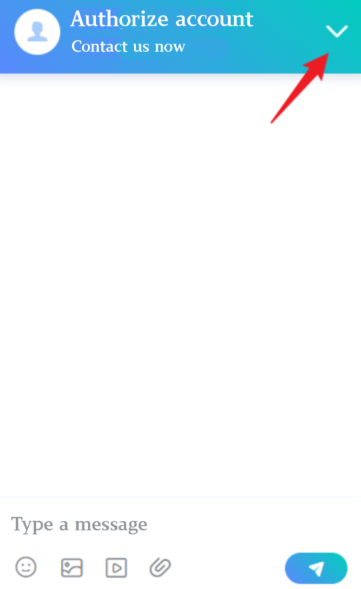
2.2.18 Hide the close window button
Hide the close window button in the upper right corner of the chat window.
ssq.push('hideCloseIcon', function(result) {
  console.log('hideCloseIcon status:', result.status);
});
Callback status:
success: The close icon was hidden.
2.19 Get Plugin Entry Height
Used to get the actual displayed height of the current chat plugin entry area on the page, in px.
The “entry area” includes the currently visible plugin entry elements, such as the collapsed sidebar, expanded sidebar, single-icon entry, and channel icon list. The SDK calculates the overall vertical height occupied by these visible entry elements and returns it through a callback.
This API is suitable for scenarios where the host page needs to avoid overlapping with the chat plugin entry, such as adjusting the position of custom floating buttons, custom notification popups, bottom toolbars, or other fixed-position elements.
ssq.push('getSidebarHeight', function(height) {
    console.log(height); // Current height occupied by the plugin entry area, in px
});
It is recommended to call this API after onReady to ensure that the plugin configuration and entry elements have been initialized:
ssq.push('onReady', function() {
    ssq.push('getSidebarHeight', function(height) {
        // For example: adjust the position of a floating element on the host page based on the plugin entry height
        console.log('Current sidebar height:', height);
    });
});
2.20 Prefill the Input Box
Use this API to prefill the chat widget input box with specified text. Visitors can continue editing the draft and send it manually. Calling this API does not open the chat window, switch the current view, focus the input box, or send a message.
text must be a string. The widget stores the result of JavaScript text.slice(0, 1000), limiting the draft to the first 1000 UTF-16 code units. Pass an empty string to clear the current draft. If the API is called multiple times, the last executed call determines the current draft.
ssq.push('setInputText', 'Text to prefill', function(result) {
  console.log('setInputText status:', result.status);
});

// Clear the input draft
ssq.push('setInputText', '');
Callback status:
success: The input draft was updated.
;}.cls-2{fill:%230868f7;}.cls-3{fill:url(%23未命名的渐变_44);}.cls-4{fill:%23333;}%3c/style%3e%3clinearGradient%20id='未命名的渐变_8'%20x1='33.73'%20y1='100.61'%20x2='-0.03'%20y2='-1.06'%20gradientUnits='userSpaceOnUse'%3e%3cstop%20offset='0'%20stop-color='%237ae9fb'/%3e%3cstop%20offset='0.67'%20stop-color='%232b90f8'/%3e%3cstop%20offset='1'%20stop-color='%230868f7'/%3e%3c/linearGradient%3e%3clinearGradient%20id='未命名的渐变_44'%20x1='27.86'%20y1='18.67'%20x2='68.36'%20y2='22.22'%20gradientUnits='userSpaceOnUse'%3e%3cstop%20offset='0'%20stop-color='%235ac7f2'/%3e%3cstop%20offset='1'%20stop-color='%230868f7'/%3e%3c/linearGradient%3e%3c/defs%3e%3cpath%20class='cls-1'%20d='M29,28.74V81.91l-9.51-3.68v0L8.52,74A7.17,7.17,0,0,1,4,67.32V24.54A3.76,3.76,0,0,1,9.08,21Z'/%3e%3cpath%20class='cls-2'%20d='M68.09,78.07a13.15,13.15,0,0,1-17.9,12.06L29,81.91h0V28.74L50.19,37A13.17,13.17,0,0,0,68.08,25.3h0Z'/%3e%3cpath%20class='cls-3'%20d='M68.08,25.3a13.19,13.19,0,0,1-6.73,10.87A13.09,13.09,0,0,1,50.19,37L29,28.74V6A3.76,3.76,0,0,1,34.1,2.52l25.59,9.91A13.22,13.22,0,0,1,68.08,25.3Z'/%3e%3cpath%20class='cls-4'%20d='M129.06,81.76a4.33,4.33,0,0,1-3.19-1.31,4.4,4.4,0,0,1-1.31-3.24V56.86H97.65V77.21a4.36,4.36,0,0,1-1.35,3.2A4.68,4.68,0,0,1,93,81.76a4.32,4.32,0,0,1-3.19-1.31,4.37,4.37,0,0,1-1.32-3.24V27.27A4.58,4.58,0,0,1,89.83,24a4.59,4.59,0,0,1,7.82,3.27V48.15h26.91V27.27A4.58,4.58,0,0,1,125.91,24a4.59,4.59,0,0,1,7.82,3.27V77.21a4.37,4.37,0,0,1-1.36,3.2A4.65,4.65,0,0,1,129.06,81.76Z'/%3e%3cpath%20class='cls-4'%20d='M163.77,81.66c-6.57,0-11.76-1.92-15.44-5.7s-5.54-9.07-5.54-15.74a26.76,26.76,0,0,1,2.09-10.43,17.72,17.72,0,0,1,6.67-8.06,19.15,19.15,0,0,1,10.68-2.95,19,19,0,0,1,10.46,2.8,18.7,18.7,0,0,1,6.55,7.36,22.53,22.53,0,0,1,2.36,10.28A4.51,4.51,0,0,1,177,63.77H152.23a10.8,10.8,0,0,0,3.49,6.65c2,1.68,4.88,2.52,8.66,2.52a22.25,22.25,0,0,0,7.54-1.21c.74-.3,1.55-.67,2.37-1.07a3.75,3.75,0,0,1,1.84-.4,4.09,4.09,0,0,1,3,1.15,4,4,0,0,1,1.12,3,4.38,4.38,0,0,1-2.58,3.82,32.34,32.34,0,0,1-6.36,2.61A28.67,28.67,0,0,1,163.77,81.66ZM172.4,55.9a9.72,9.72,0,0,0-1.63-4.56A9.9,9.9,0,0,0,167,48a10.38,10.38,0,0,0-4.64-1.14,12,12,0,0,0-4.77,1.06,9.54,9.54,0,0,0-4.89,5.66,11.78,11.78,0,0,0-.51,2.3Z'/%3e%3cpath%20class='cls-4'%20d='M193,81.64a4.49,4.49,0,0,1-4.51-4.55V27.28A4.58,4.58,0,0,1,189.84,24a4.48,4.48,0,0,1,3.28-1.36A4.36,4.36,0,0,1,196.35,24a4.46,4.46,0,0,1,1.31,3.31V77.09a4.34,4.34,0,0,1-1.35,3.2A4.67,4.67,0,0,1,193,81.64Z'/%3e%3cpath%20class='cls-4'%20d='M263.79,81.71a5.7,5.7,0,0,1-4.2-1.74,5.76,5.76,0,0,1-1.73-4.19V27.37a4.58,4.58,0,0,1,1.35-3.27A4.59,4.59,0,0,1,267,27.37V72.53h24a4.58,4.58,0,0,1,3.27,7.82A4.66,4.66,0,0,1,291,81.71Z'/%3e%3cpath%20class='cls-4'%20d='M424.48,81.74a4.71,4.71,0,0,1-2.71-.88,5.43,5.43,0,0,1-1-1l-.07-.09-12.41-17-5.41,5v9.44a4.31,4.31,0,0,1-1.36,3.19,4.66,4.66,0,0,1-3.3,1.36A4.29,4.29,0,0,1,395,80.42a4.36,4.36,0,0,1-1.32-3.23V27.37A4.58,4.58,0,0,1,395,24.1a4.52,4.52,0,0,1,6.58.12,4.54,4.54,0,0,1,1.24,3.15V56.31l17.72-16.38.05,0a4.8,4.8,0,0,1,2.94-1.11,4.4,4.4,0,0,1,3.27,1.2,4.57,4.57,0,0,1,1.2,3.27,4.44,4.44,0,0,1-.77,2.33,7.45,7.45,0,0,1-1.43,1.65l-11,9.64,13.34,17.68a5,5,0,0,1,1,2.71,4.12,4.12,0,0,1-1.36,3.24A4.64,4.64,0,0,1,424.48,81.74Z'/%3e%3cpath%20class='cls-4'%20d='M317.93,81.76a21.5,21.5,0,1,1,21.17-21.5A21.37,21.37,0,0,1,317.93,81.76Zm0-34.1a12.61,12.61,0,1,0,12.42,12.6A12.52,12.52,0,0,0,317.93,47.66Z'/%3e%3cpath%20class='cls-4'%20d='M212.18,101.22a4.12,4.12,0,0,1-3.05-1.26,4.17,4.17,0,0,1-1.26-3.1V43.34a4.37,4.37,0,0,1,1.3-3.14,4.26,4.26,0,0,1,3.13-1.3,4.19,4.19,0,0,1,3.1,1.26,4.32,4.32,0,0,1,1.26,3.16,20.77,20.77,0,0,1,13-4.54,21.51,21.51,0,0,1,0,43,20.51,20.51,0,0,1-13-4.57V96.86a4.15,4.15,0,0,1-1.3,3.06A4.5,4.5,0,0,1,212.18,101.22Zm17.43-53.63c-6.23,0-12.93,4.11-12.93,12.72a12.73,12.73,0,0,0,25.46,0A12.71,12.71,0,0,0,229.61,47.59Z'/%3e%3cpath%20class='cls-4'%20d='M365.76,81.76a21.5,21.5,0,1,1,21.18-21.5A21.37,21.37,0,0,1,365.76,81.76Zm0-34.1a12.61,12.61,0,1,0,12.42,12.6A12.52,12.52,0,0,0,365.76,47.66Z'/%3e%3c/svg%3e)